> ## Documentation Index
> Fetch the complete documentation index at: https://magicpatterns.mintlify.site/docs/llms.txt
> Use this file to discover all available pages before exploring further.
# SSO, SCIM & Domain Setup
> Learn how to set up Single Sign-On (SSO), SCIM directory sync, and domain capture for your workspace
This guide explains how to set up enterprise authentication and user management features for your Magic Patterns workspace.
## Single Sign-On (SSO)
Magic Patterns supports Single Sign-On (SSO), allowing your team to authenticate using your workspace's identity provider. SSO configuration is self-serve for Business and Enterprise accounts. Admins can configure it at [magicpatterns.com/settings/workspace](https://www.magicpatterns.com/settings/workspace).
Go to
[magicpatterns.com/settings/workspace](https://www.magicpatterns.com/settings/workspace),
click Configure SSO, and follow the setup instructions to connect your
identity provider (such as Okta, Azure AD, Google Workspace, or others) to
Magic Patterns.
Once configured, your team members can sign in to Magic Patterns using your
workspace's SSO credentials.
## SCIM / Directory Sync
Magic Patterns supports SCIM (System for Cross-domain Identity Management) for automatic user provisioning and directory synchronization for Enterprise customers.
SCIM directory sync is also configured through WorkOS. When you set up SSO,
you can also enable SCIM for automatic user management.
Once SCIM is enabled, users from your directory will be automatically
provisioned in Magic Patterns when they're added to your identity provider.
Changes to users in your directory (such as deactivation) will automatically
sync to Magic Patterns.
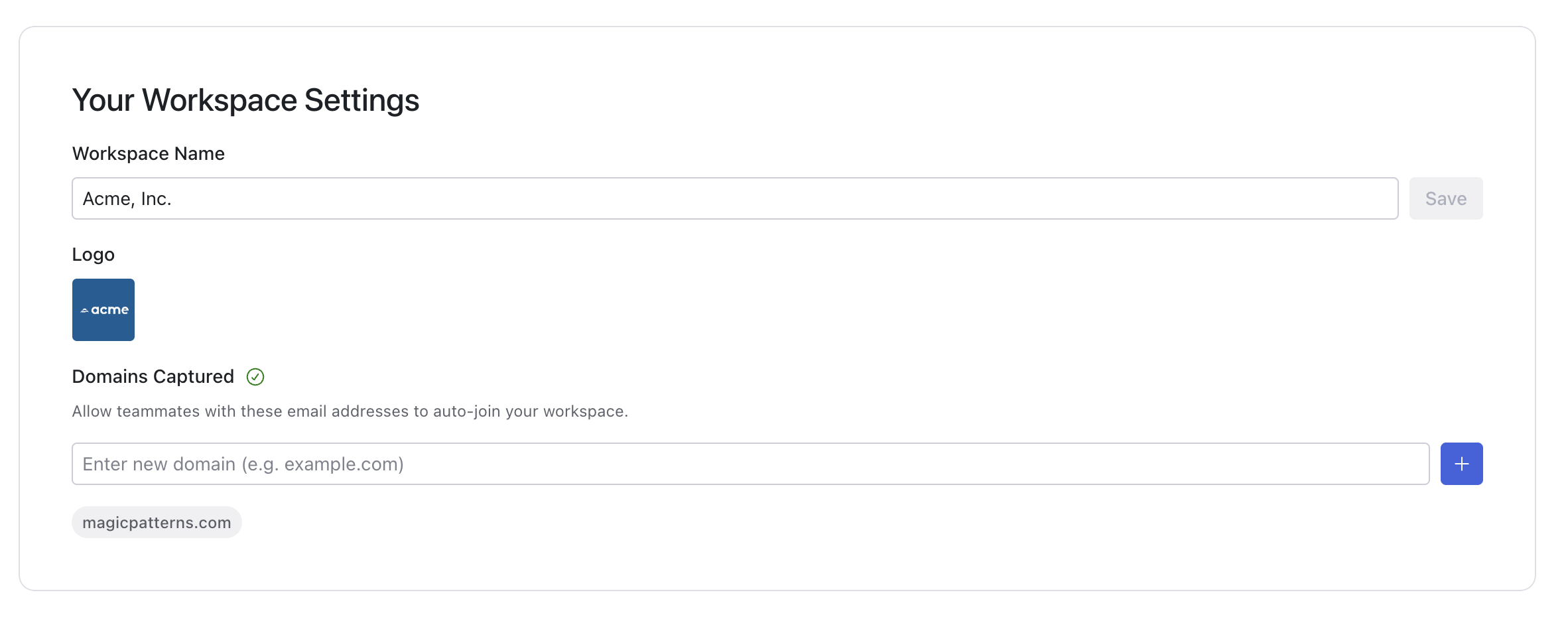
## Domain Capture / Auto Join
Domain capture automatically adds new users to your workspace when they sign up
to Magic Patterns with an email address from your workspace's domain.
To set up domain capture, edit the domain capture section of [your workspace
settings](https://www.magicpatterns.com/workspace/settings#workspace-settings).
Input your workspace's email domain (e.g., `@yourcompany.com`).
If you have already verified your domain, you can add it to your workspace
settings self-serve. Otherwise, you will be prompted to verify with our
support team and we will assist.
Domain capture can be combined with SSO and SCIM for comprehensive user
management. Contact
[support@magicpatterns.com](mailto:support@magicpatterns.com) to discuss your
workspace's needs.
Learn more about managing team members and workspaces in Magic Patterns.