> ## Documentation Index
> Fetch the complete documentation index at: https://magicpatterns.mintlify.site/docs/llms.txt
> Use this file to discover all available pages before exploring further.
# Import from Figma
> Import designs from Figma to Magic Patterns
Import your Figma designs into Magic Patterns to turn them into interactive, code-first prototypes. Watch the video below to see how it works:
### Connect Your Figma Account
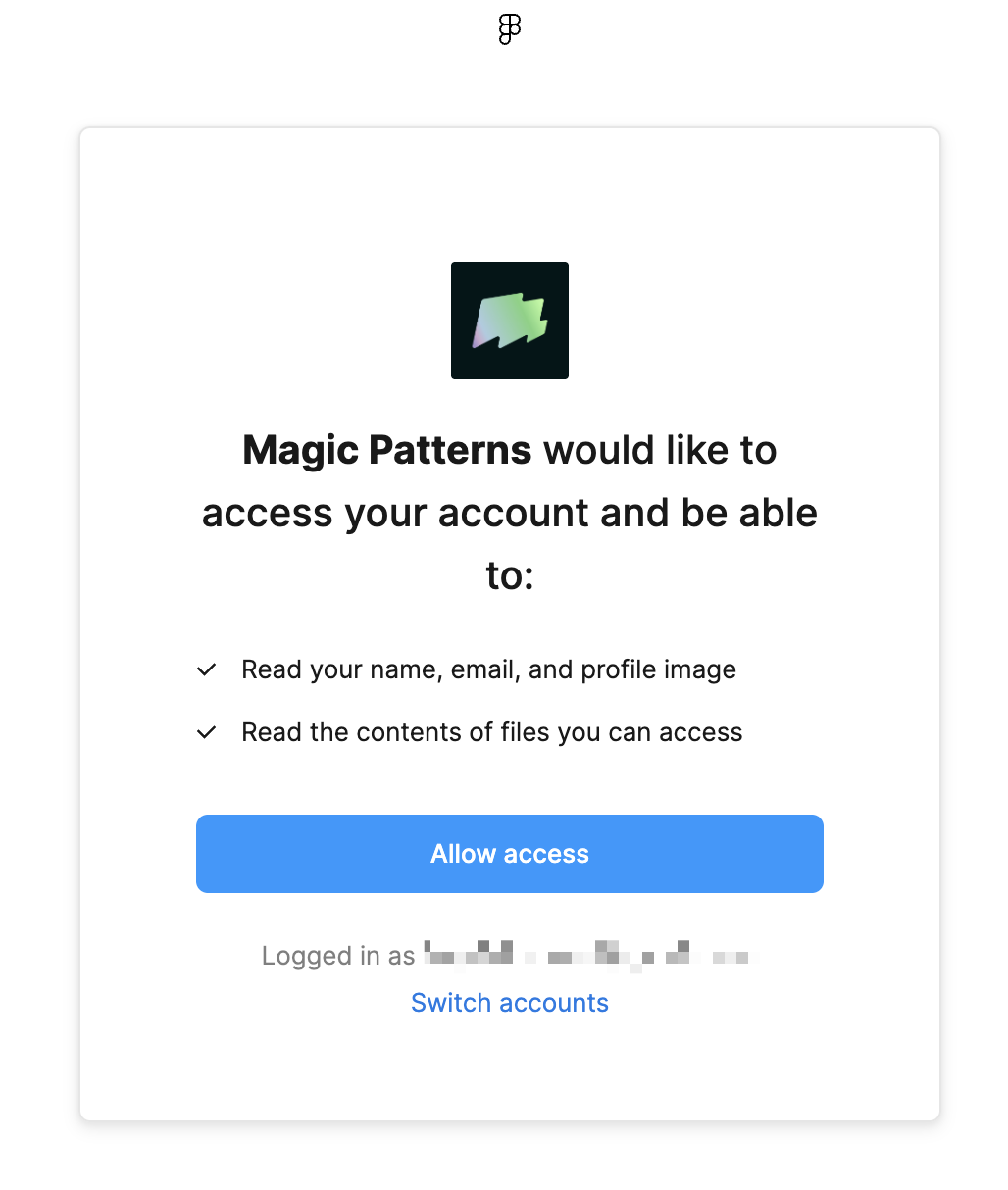
Before importing, you'll need to connect your Figma account to Magic Patterns. This connection enables both copy-paste imports and URL-based imports.
When you connect your Figma account, we automatically use the **Figma MCP Server** to provide more precise imports by extracting detailed design information from your files.
**MCP** (Model Context Protocol) allows AI tools to communicate through a common interface. With MCP, we can access richer design data from Figma, resulting in better import quality.
The Figma MCP Server is only available for `Dev` and `Full` Figma accounts.
`Free` and `Collab` accounts will still work but may have less precise
imports.
### Copy and Paste Import
The fastest way to import from Figma is to simply copy a frame or component in Figma and paste it directly into Magic Patterns. Once your Figma account is connected, Magic Patterns will automatically detect the pasted design and import it.
### Import via URL
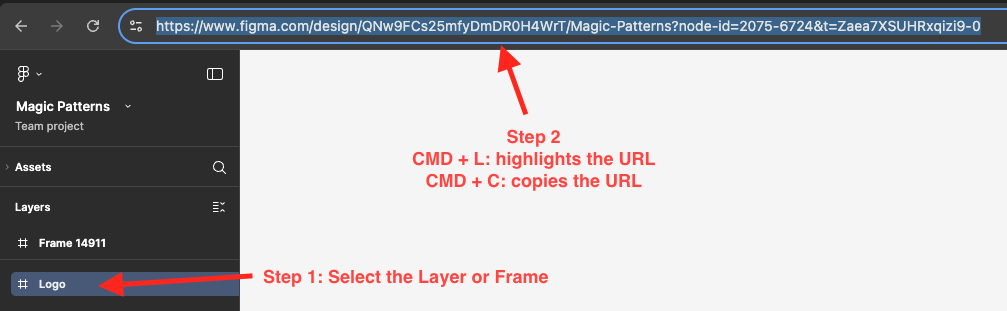
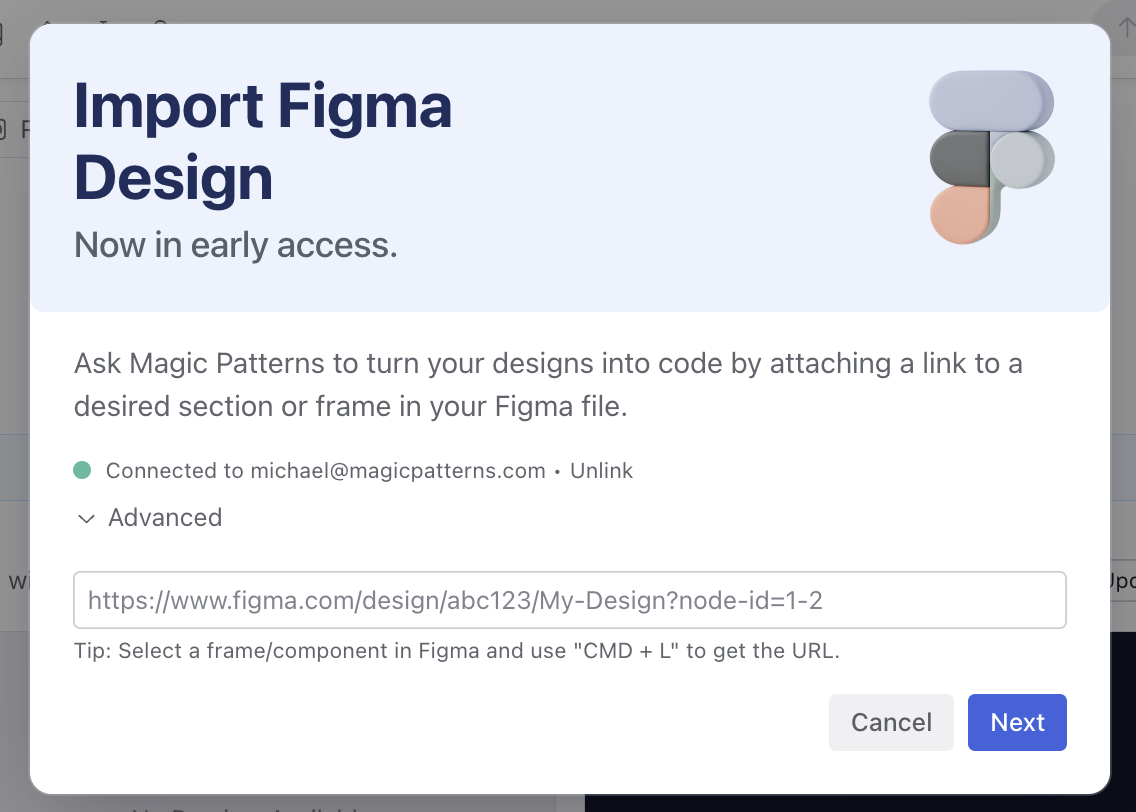
You can also import by pasting a Figma URL. This method works well when you want to share a specific frame link or import from a file you're not actively working in.
You can import **one frame at a time**. If you need to import multiple frames,
repeat the import process for each frame. Import from Figma won't always
generate a pixel-perfect frame. That's because every Magic Patterns design is
code-first and interactive, whereas Figma frames are not.
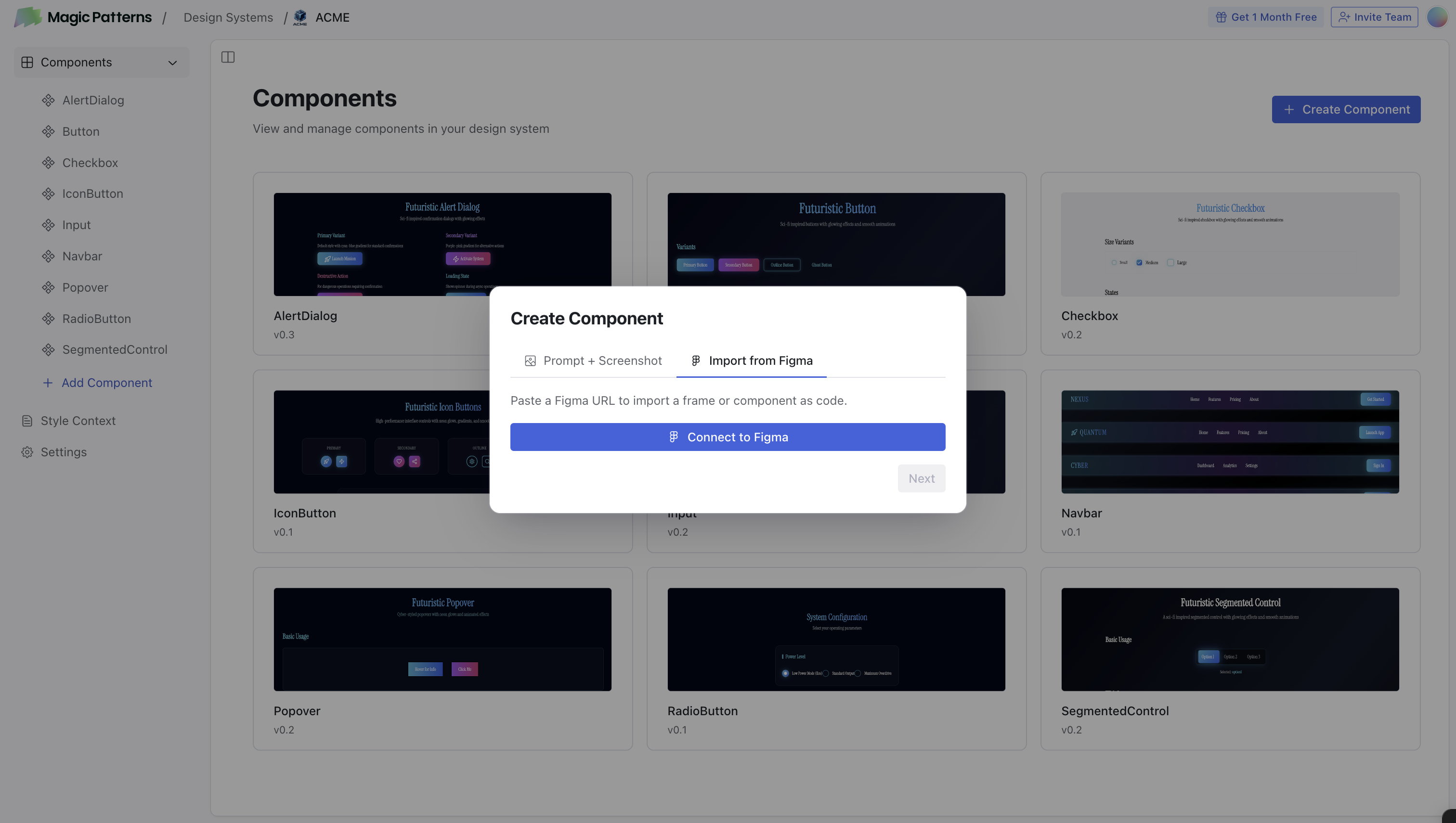
You can also import Figma components as Magic Patterns [components](/documentation/design-systems/editing/components) by going into a [Design System](/documentation/design-systems/overview), clicking **Create Component**, and choosing the **Import from Figma** tab.
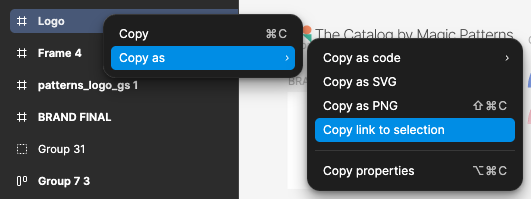
Select a frame/component in Figma, right click and select 'Copy as' and then 'Copy link to selection'. CMD + L allows you highlight the link to the selection directly.
Select a frame/component in Figma and use "CMD + L" to get the URL.
## Video Guide
This topic is covered in our video lesson [Figma Imports](/documentation/guide/figma-imports).
 When you connect your Figma account, we automatically use the **Figma MCP Server** to provide more precise imports by extracting detailed design information from your files.
**MCP** (Model Context Protocol) allows AI tools to communicate through a common interface. With MCP, we can access richer design data from Figma, resulting in better import quality.
When you connect your Figma account, we automatically use the **Figma MCP Server** to provide more precise imports by extracting detailed design information from your files.
**MCP** (Model Context Protocol) allows AI tools to communicate through a common interface. With MCP, we can access richer design data from Figma, resulting in better import quality.
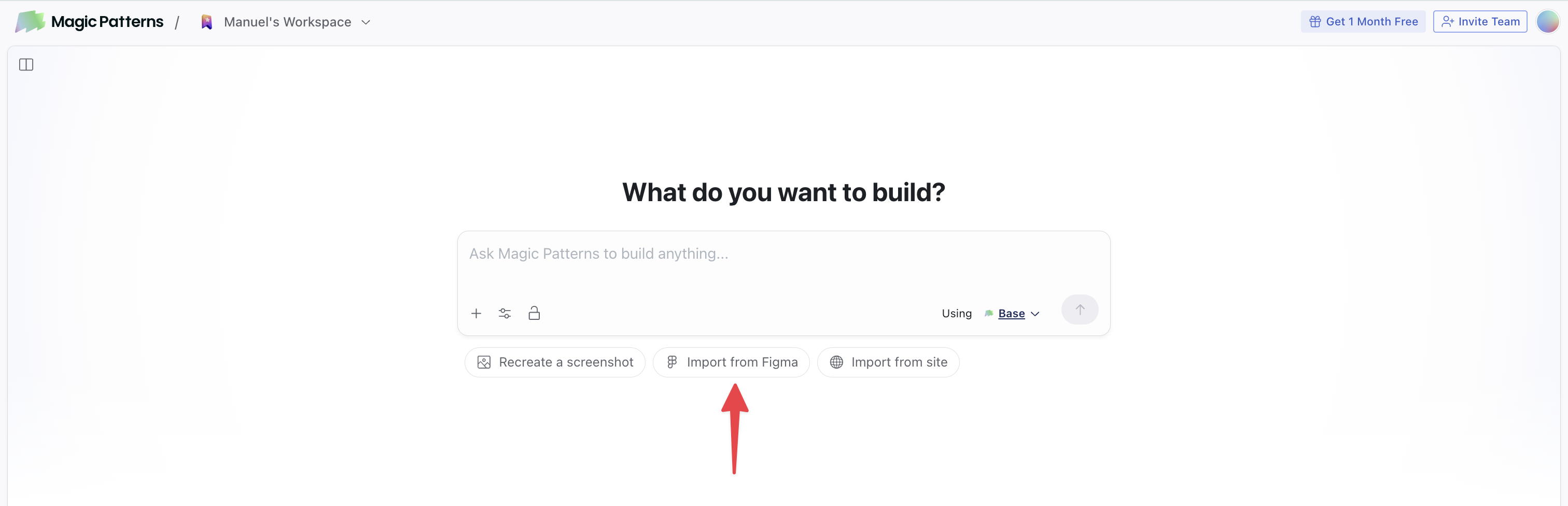 You can also import Figma components as Magic Patterns [components](/documentation/design-systems/editing/components) by going into a [Design System](/documentation/design-systems/overview), clicking **Create Component**, and choosing the **Import from Figma** tab.
 Select a frame/component in Figma and use "CMD + L" to get the URL.