> ## Documentation Index
> Fetch the complete documentation index at: https://magicpatterns.mintlify.site/docs/llms.txt
> Use this file to discover all available pages before exploring further.
# Using the Canvas
> Use the Canvas to organize your designs
## Introduction to the Canvas
Learn about common workflows and how to get the most out of the Canvas.
## Canvas Features
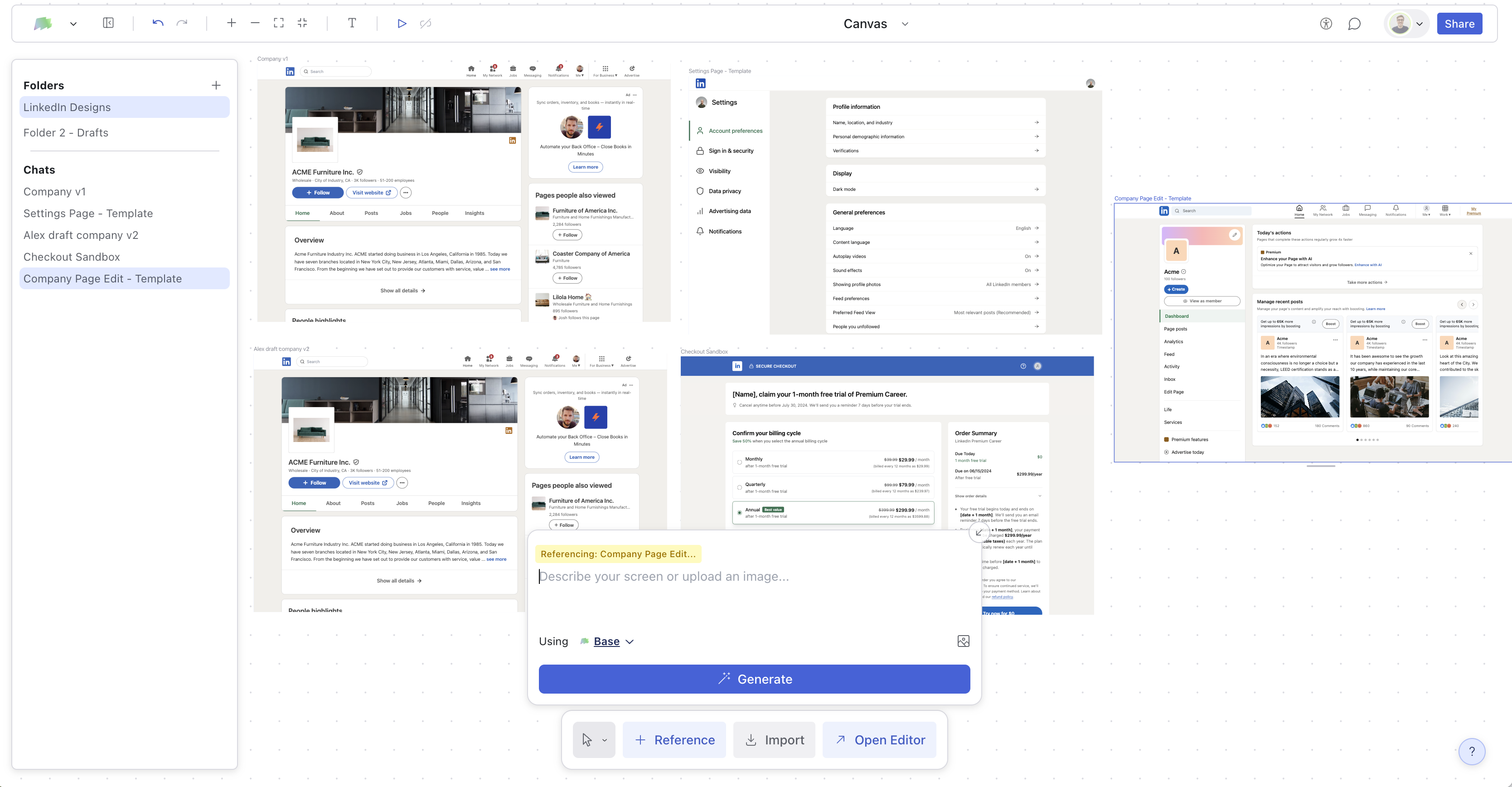
The Canvas in Magic Patterns allows you to collaborate with your team in realtime. It meant for organizing designs on a single page, like a bird's eye view of a product.
You can:
1. [Navigate](/documentation/projects/navigating) in realtime with your team, with [live cursors and shared selections](/documentation/collaboration/live-multiplayer).
2. [Import existing designs](/documentation/projects/creating-new-screens)
3. [Connect screens together](/documentation/projects/prototyping) and share the URL with customers or stakeholders.
## How to Access the Canvas
There are two ways to access the Canvas:
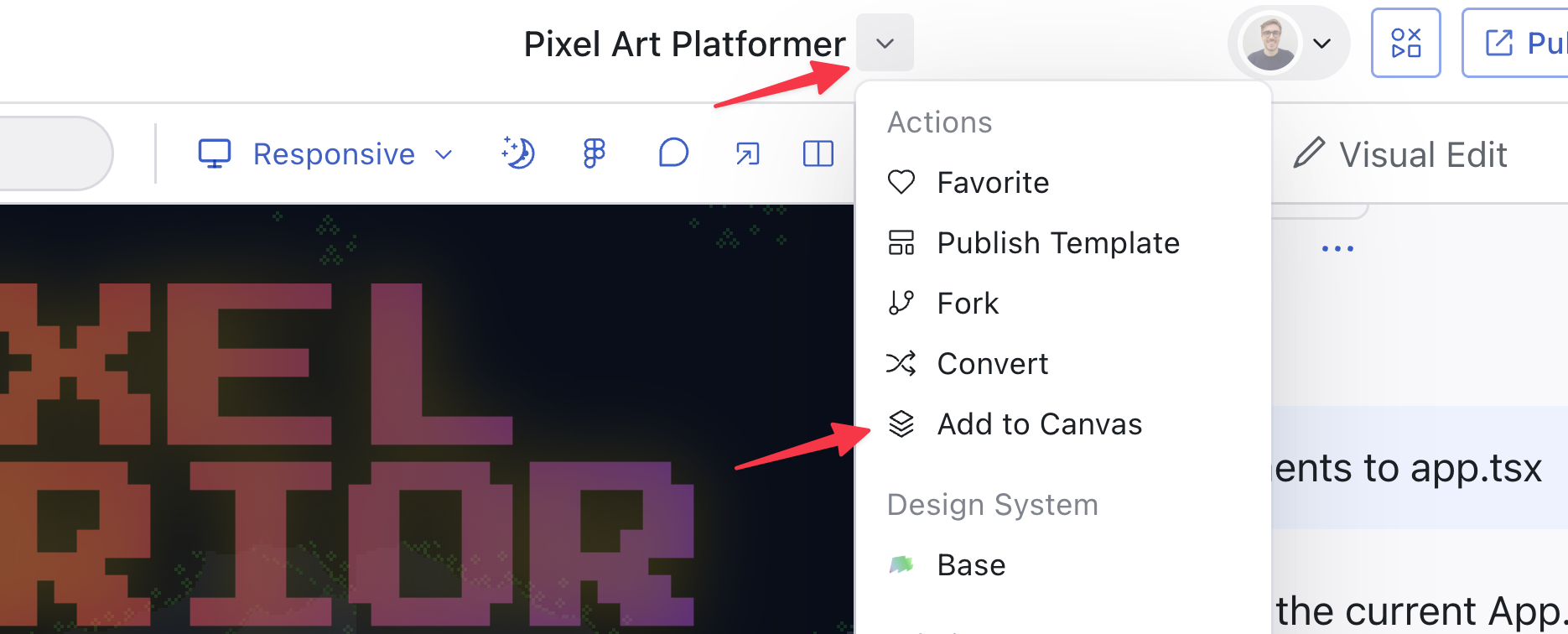
1. **From an existing design:** Click the button next to the title in the top nav bar → select "Add to Canvas"
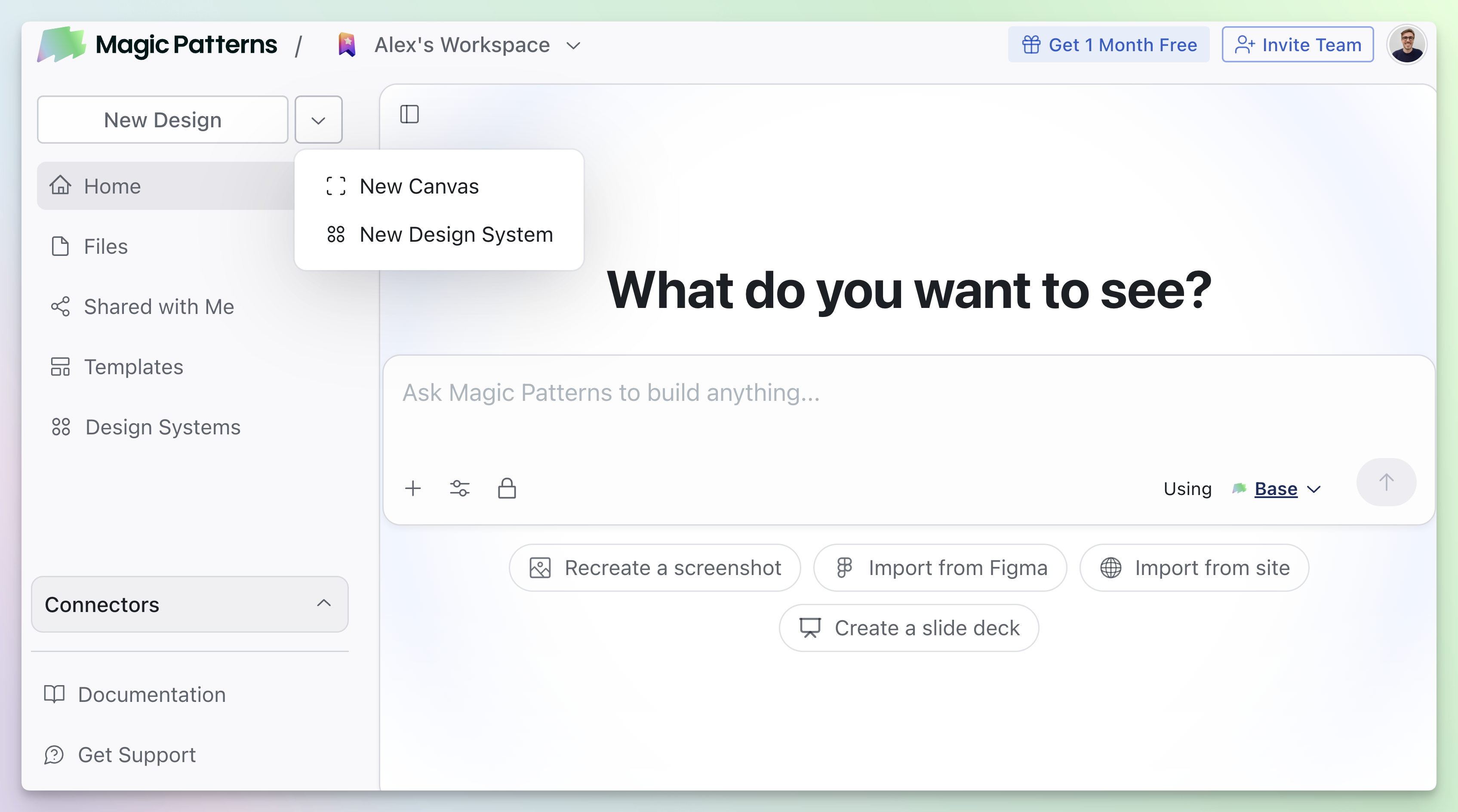
2. **From the dashboard:** Click the "Canvas" tab to see all your canvases
## Examples
* [Fintech app](https://www.magicpatterns.com/s/oQuqgAQcAWhAGQmcBAeUBX?page=0)
* [Twitter clone](https://www.magicpatterns.com/s/toUgQRYEjMnH2SMTSCyhuE?page=0)
## Read More
Learn how to navigate the canvas with your team.
Learn how to create a new screen in the canvas.
See how live cursors and shared selections work on the canvas.
 ## How to Access the Canvas
There are two ways to access the Canvas:
1. **From an existing design:** Click the button next to the title in the top nav bar → select "Add to Canvas"
## How to Access the Canvas
There are two ways to access the Canvas:
1. **From an existing design:** Click the button next to the title in the top nav bar → select "Add to Canvas"
 2. **From the dashboard:** Click the "Canvas" tab to see all your canvases
 ## Examples
* [Fintech app](https://www.magicpatterns.com/s/oQuqgAQcAWhAGQmcBAeUBX?page=0)
* [Twitter clone](https://www.magicpatterns.com/s/toUgQRYEjMnH2SMTSCyhuE?page=0)
## Read More
## Examples
* [Fintech app](https://www.magicpatterns.com/s/oQuqgAQcAWhAGQmcBAeUBX?page=0)
* [Twitter clone](https://www.magicpatterns.com/s/toUgQRYEjMnH2SMTSCyhuE?page=0)
## Read More